

Step 01Get a subscription
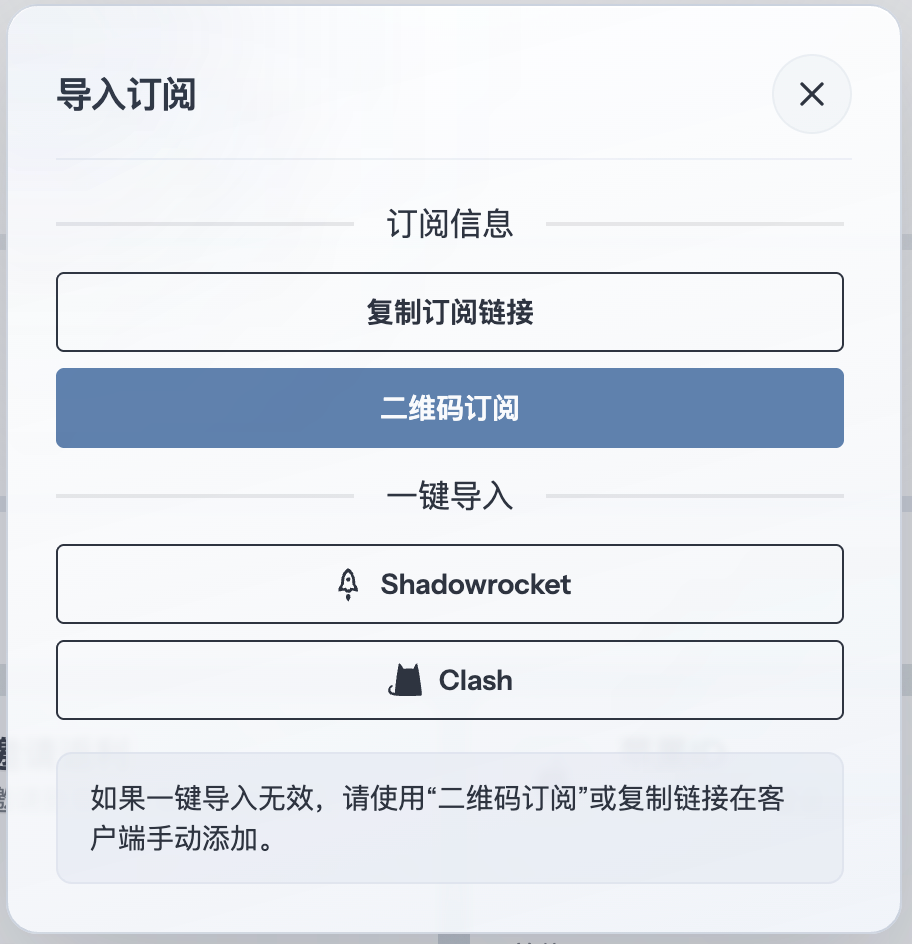
Copy a subscription URL supported by Shadowrocket from your provider, then return to the app to add it. This guide uses 畅连 as an example.
Step 02Add the subscription
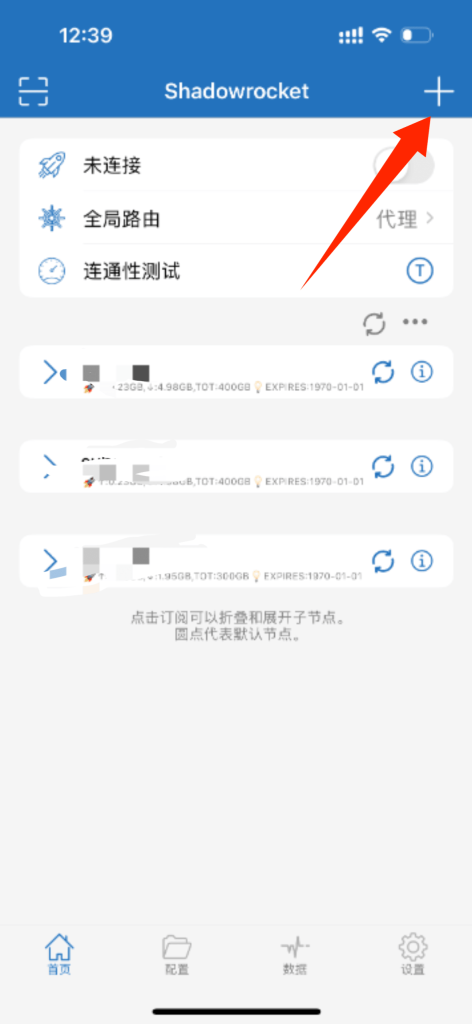
Open Shadowrocket and tap the + button in the upper-right corner.
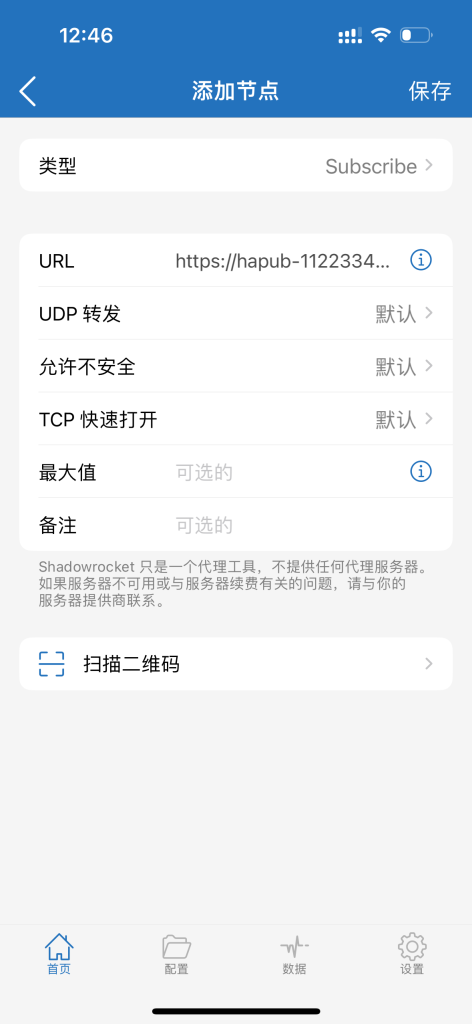
Set Type to Subscribe, paste the subscription URL into the URL field, keep the remaining defaults, and tap Save.
Step 03Select a node
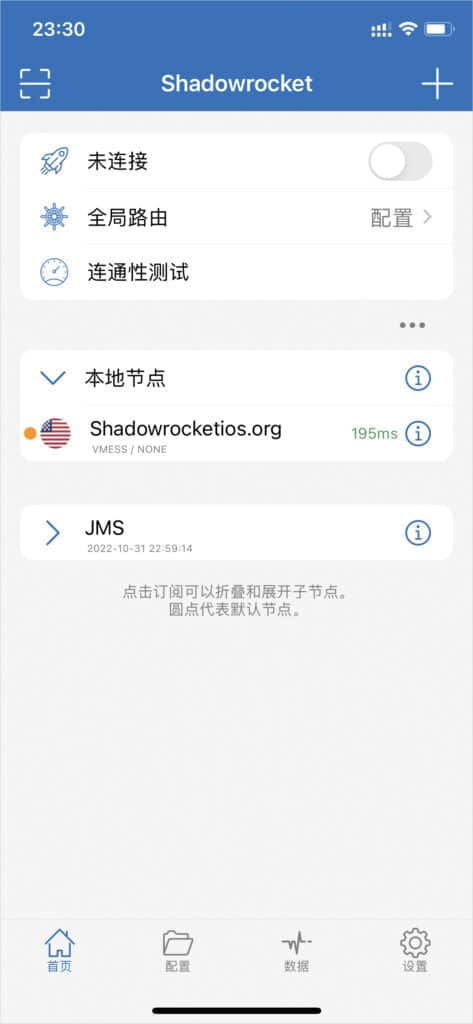
After the update succeeds, open the subscription and select a node to use.
Step 04Start the proxy
Turn on the switch in the upper-right corner. Once connected, traffic is routed according to the active Shadowrocket configuration.
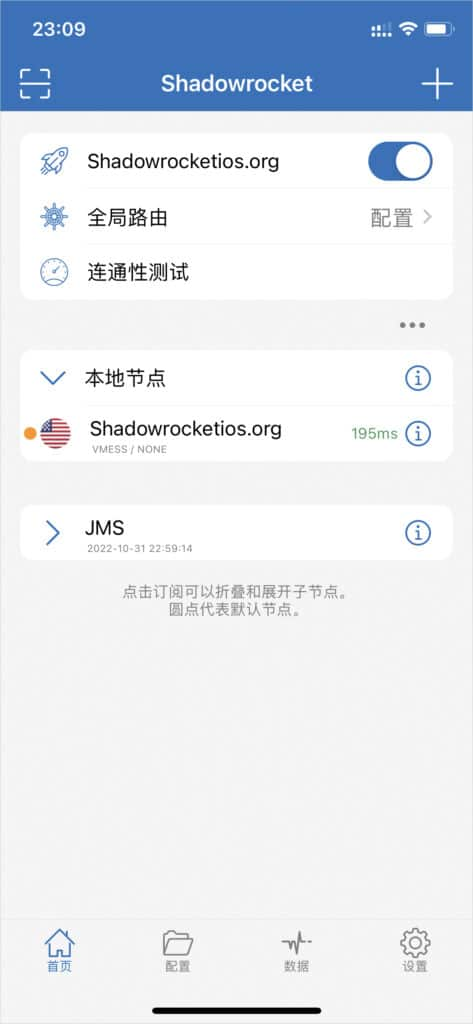
A VPN icon confirms the connection is active; it does not mean every connection uses a remote proxy. Coverage depends on the system and app VPN settings. The active mode and rules still determine whether a request connects directly, uses a proxy, or is rejected.
Step 05Understand global routing
These modes control requests that reach the client. Switching modes does not make apps outside its coverage use the proxy.
Global Routing offers four choices: Configuration, Proxy, Direct, and Scene. Configuration follows the imported rules, Proxy sends all traffic through the selected node, Direct bypasses the proxy, and Scene applies a saved scenario.