

Step 01Get a subscription
Copy a configuration URL supported by Stash from your provider, then return to the app to download the profile. This guide uses 畅连 as an example.
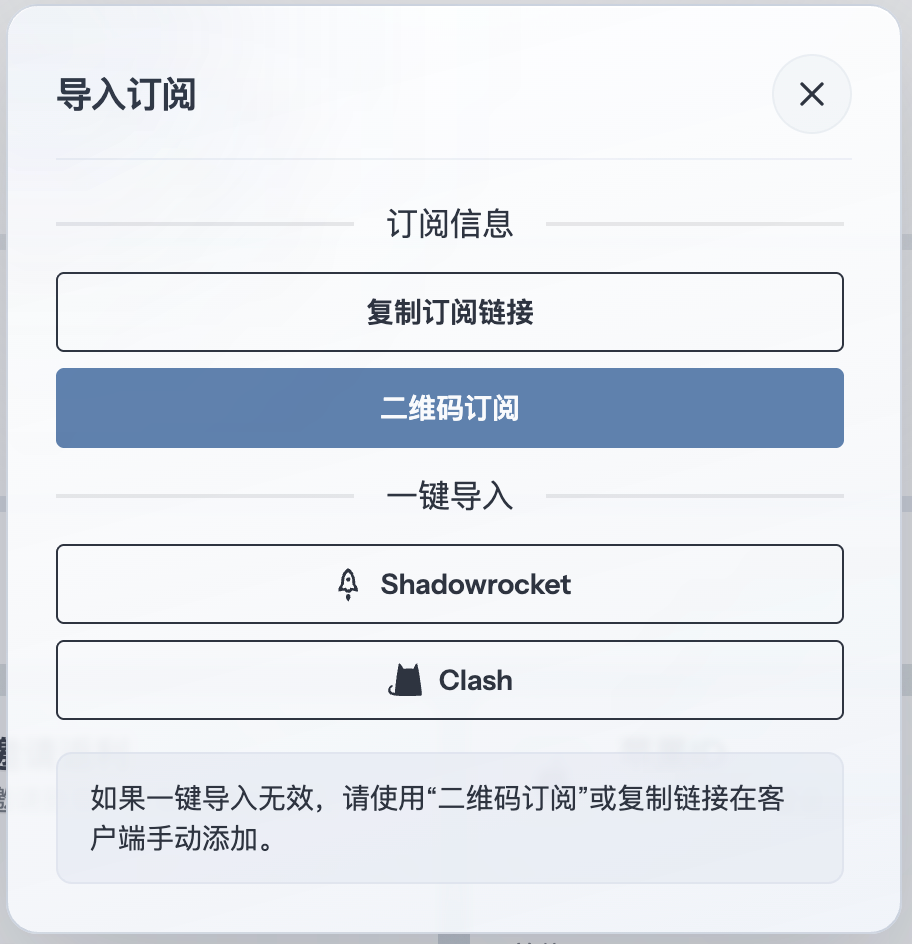
Step 02Add a profile
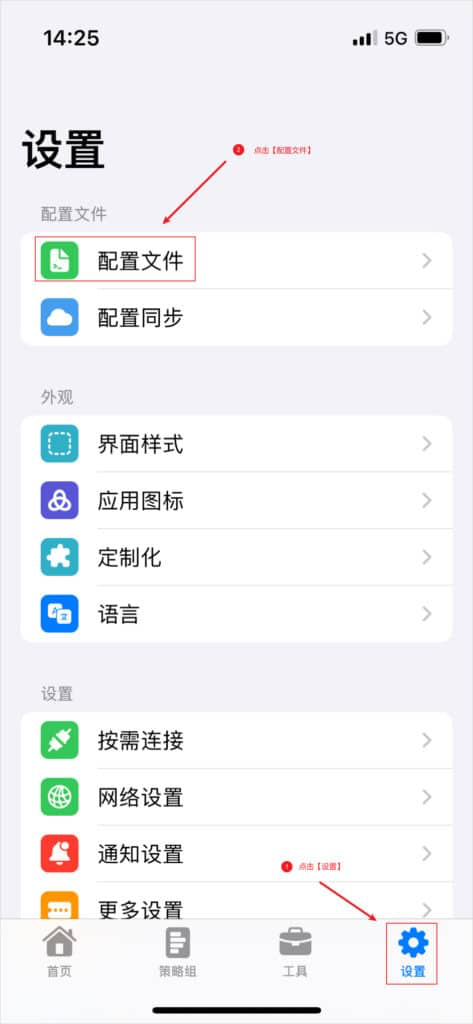
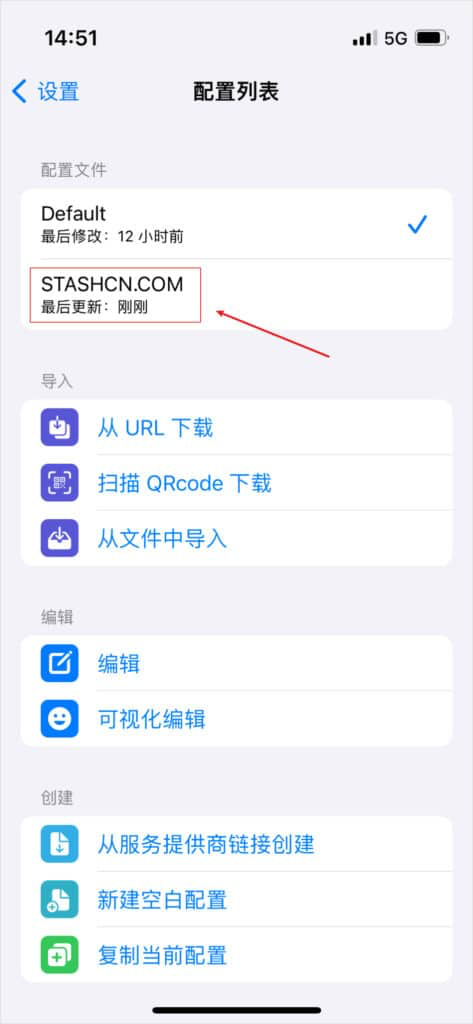
Tap Settings at the bottom of the app, then open Profiles.
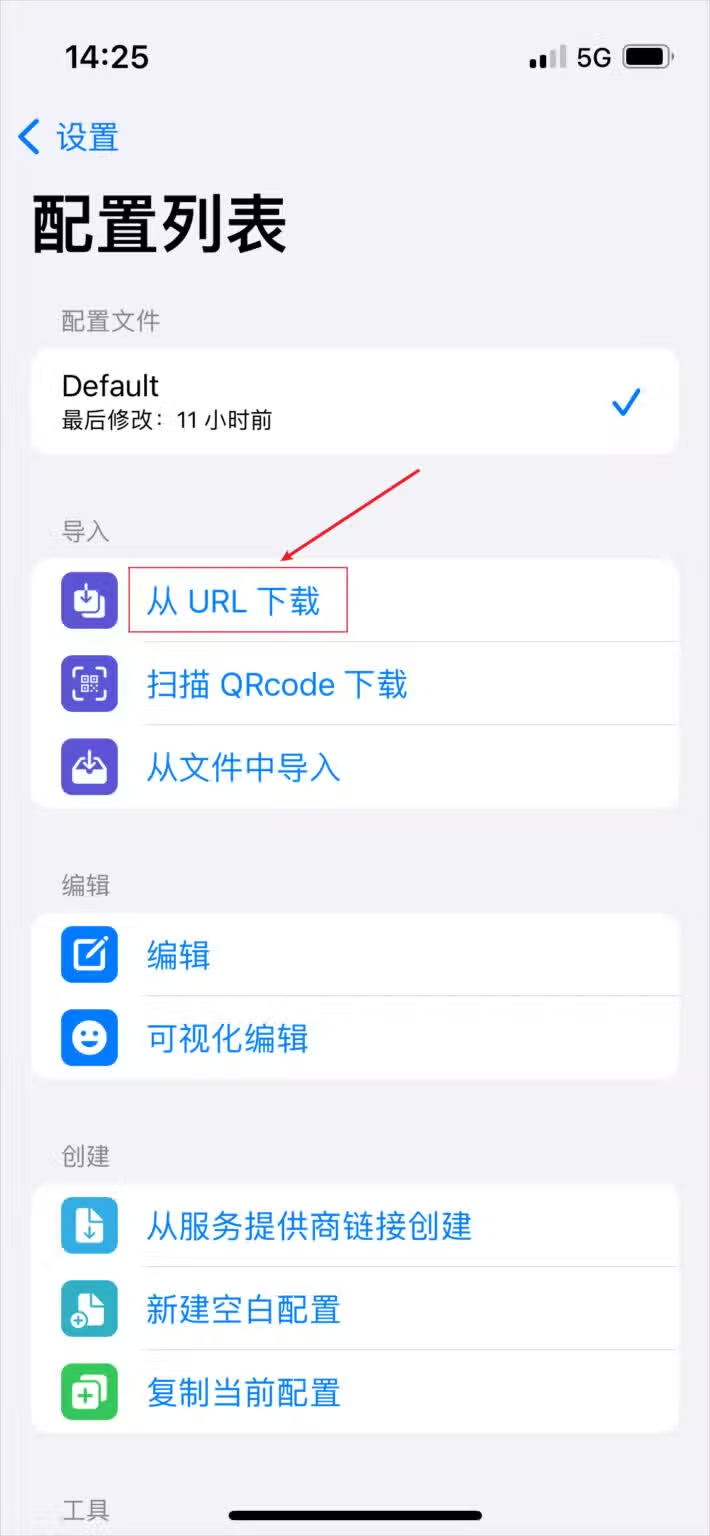
On the profile list, tap Download from URL.
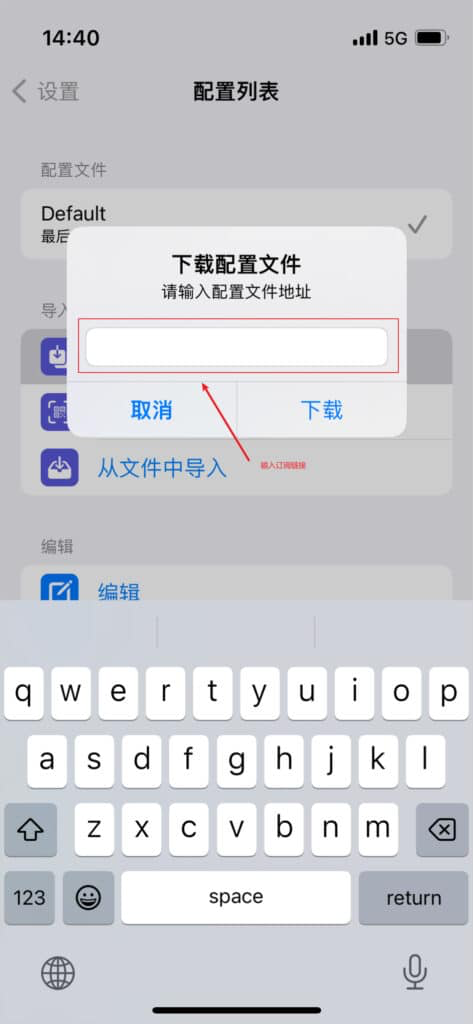
Paste the subscription URL into the dialog and tap Download.
Step 03Select the profile
After the import succeeds, select the new profile from the list and return to the home screen.
Step 04Select a node
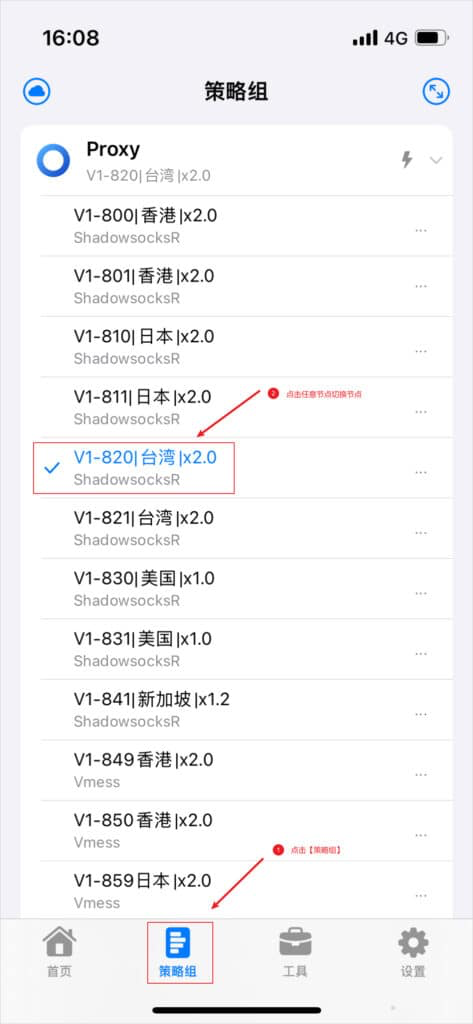
Open Policy Groups from the bottom menu, then choose a node from the relevant group.
Step 05Start the proxy
Return to Home, confirm that the new profile is active in the upper-left corner, and tap Start. Traffic is now routed according to the active Stash configuration.
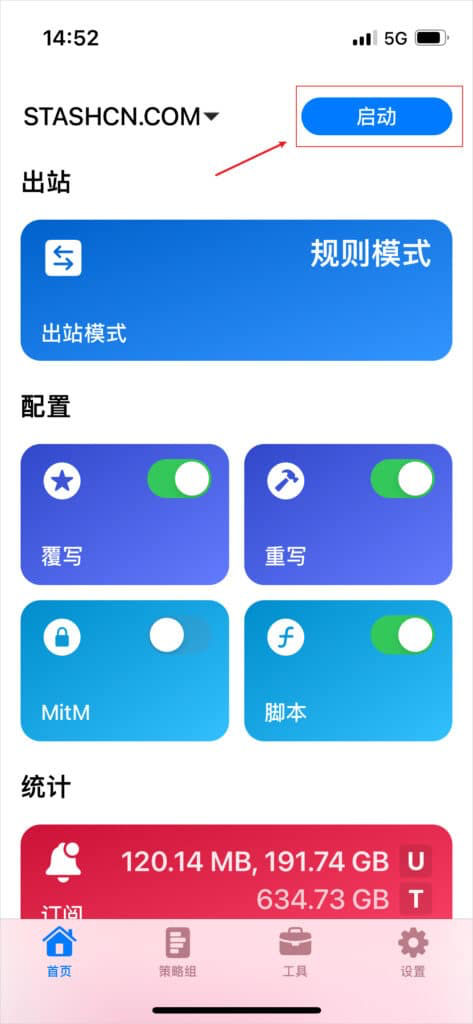
A VPN icon confirms the connection is active; it does not mean every connection uses a remote proxy. Coverage depends on the system and app VPN settings. The active mode and rules still determine whether a request connects directly, uses a proxy, or is rejected.
Step 06Understand outbound modes
These modes control requests that reach the client. Switching modes does not make apps outside its coverage use the proxy.
Stash supports three outbound modes:
- Rule: routes requests according to the profile rules.
- Global: requests handled by the client use the strategy selected in the global group instead of matching individual rules. Selecting DIRECT still makes them connect directly.
- Direct: connects every request directly without a proxy.
Global mode can proxy traffic that would otherwise connect directly, slowing local services and using plan data. Rule mode preserves direct access where appropriate, so it is usually the best default.