

Step 01Download and install
Open this site’s download page → download the universal APK → install it. Choose universal if unsure of the architecture. Get other builds through the page’s official latest-release link: most recent phones use arm64-v8a; x86/x86_64 is for matching devices or emulators.
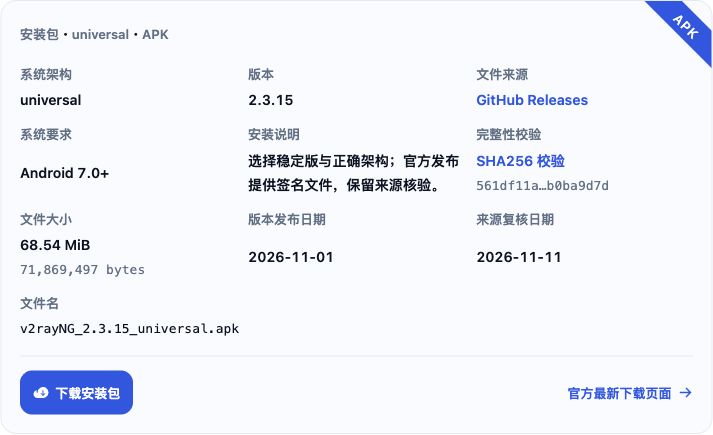
Android installation note: Open the downloaded APK. If a prompt blocks installation from this source, tap 设置 (Settings).
Enable 允许安装应用 (Allow app installs; some systems call it Allow from this source) for the browser or file manager opening the APK. Return to the installer, tap 安装 (Install), then tap 打开 (Open) when it finishes.
Open v2rayNG to reach the 配置文件 (Configuration files) home screen.

Step 02Get a subscription
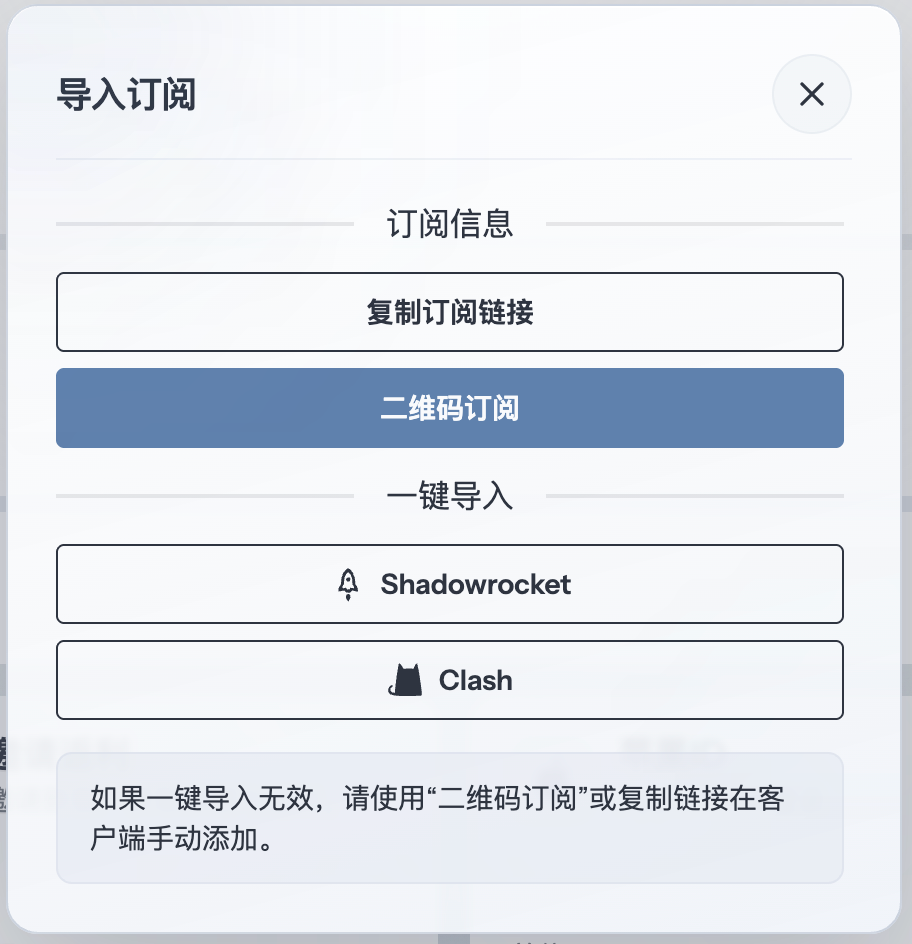
Copy the URL for a v2rayNG/Xray-compatible subscription from your provider's dashboard. Using 畅连 as an example, open the subscription import window and click “复制订阅链接” (Copy subscription link).
Step 03Open subscription settings
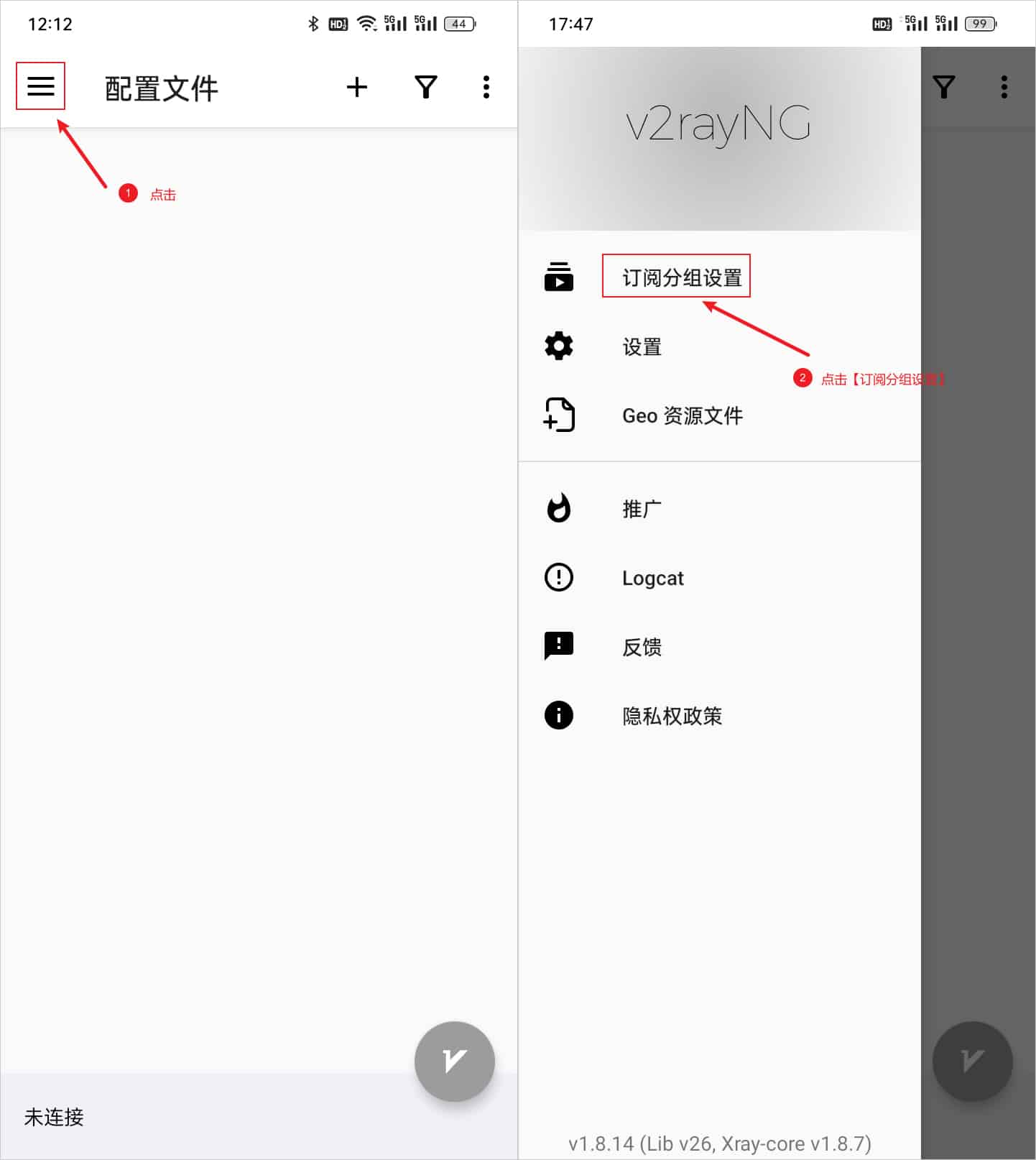
Tap the top-left three-line menu → 订阅分组设置 (Subscription group settings).
Step 04Add and save a subscription
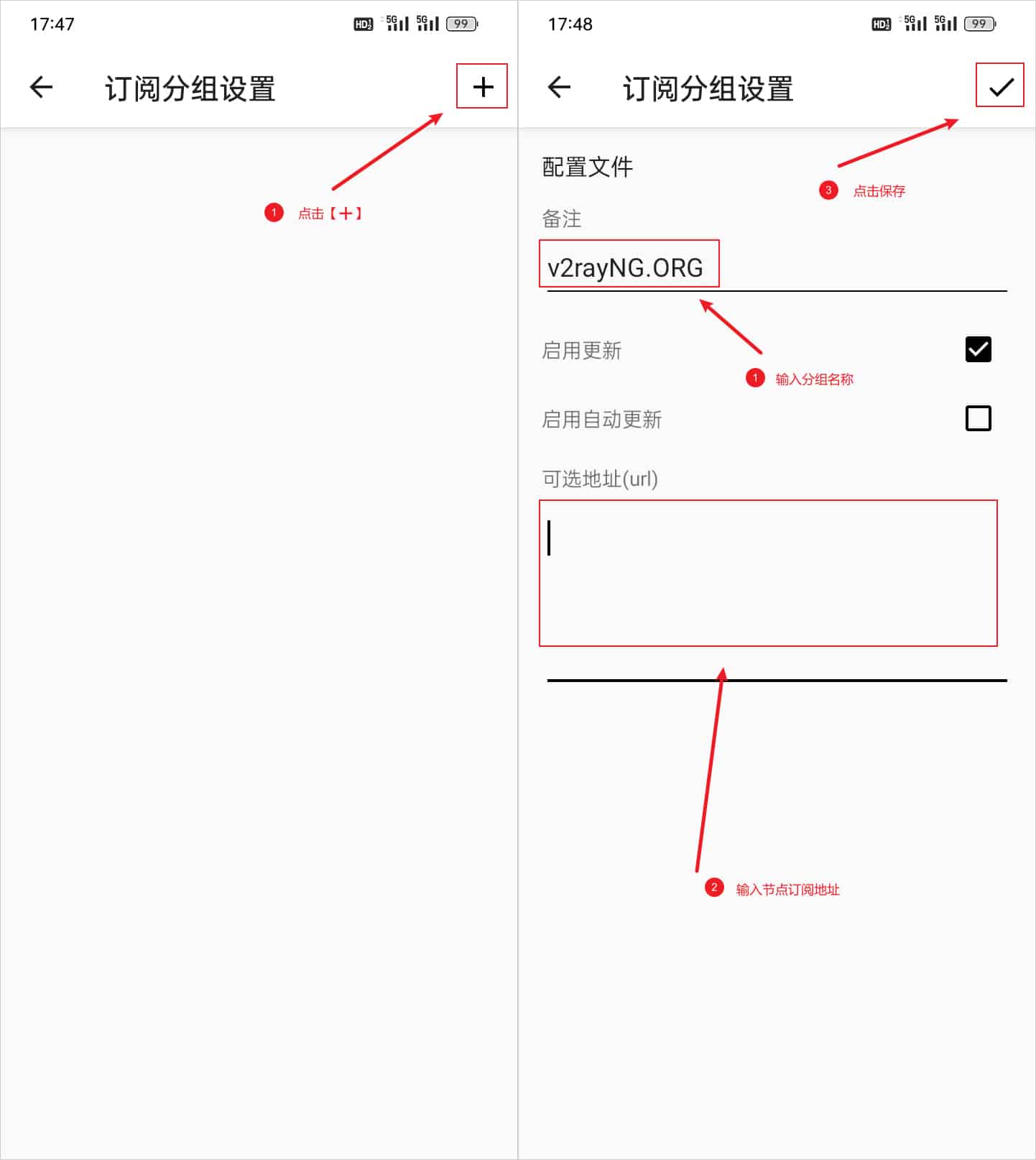
Tap + at the top right → enter a name in 备注 (Remarks) → paste the complete HTTPS subscription URL into 可选地址(url) (Optional URL). Leave 启用更新 (Enable updates) checked, then tap the top-right checkmark to save.
Step 05Update the subscription
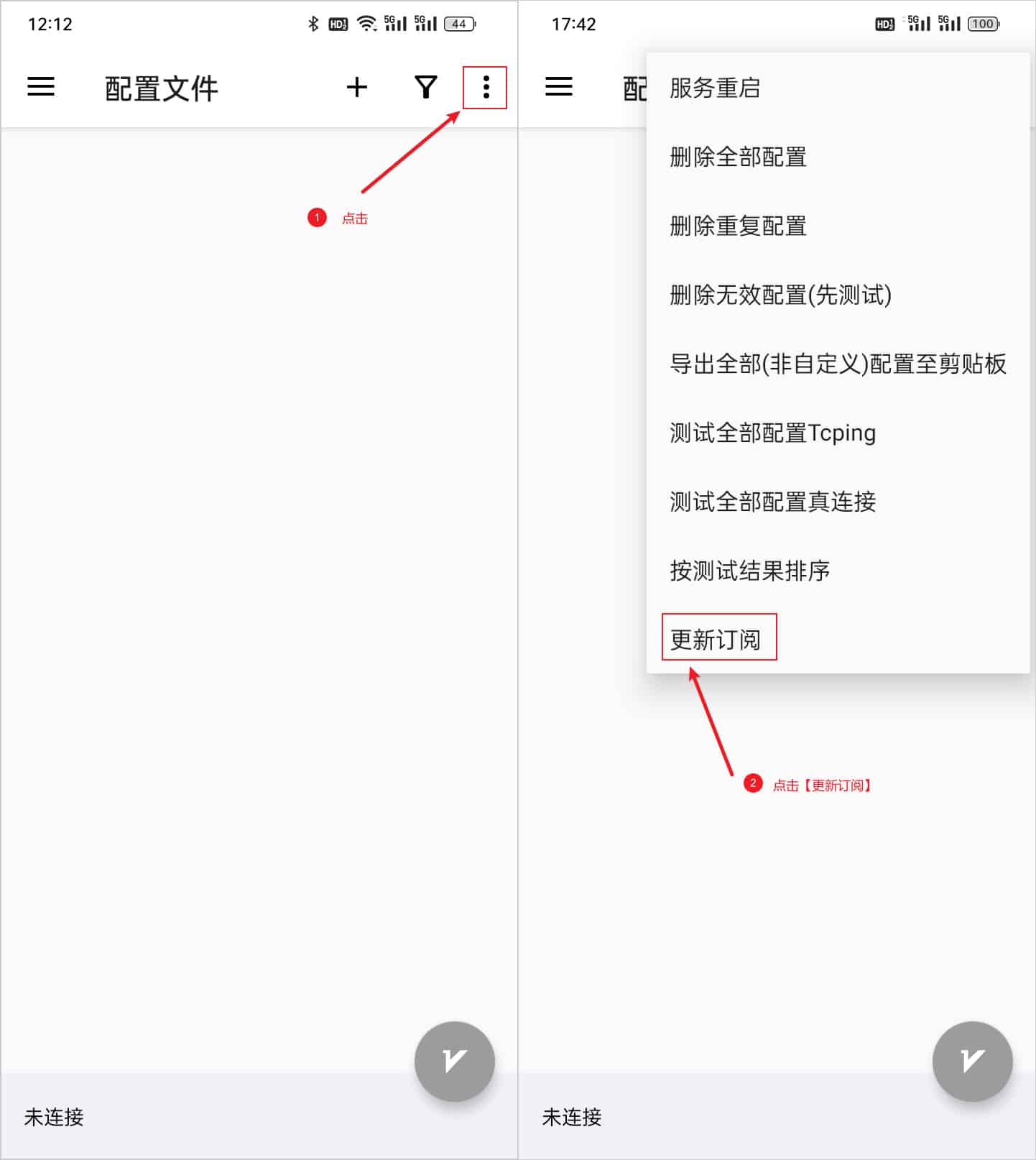
Return to the 配置文件 (Configuration files) home screen → tap the top-right three-dot menu → 更新订阅 (Update subscriptions).
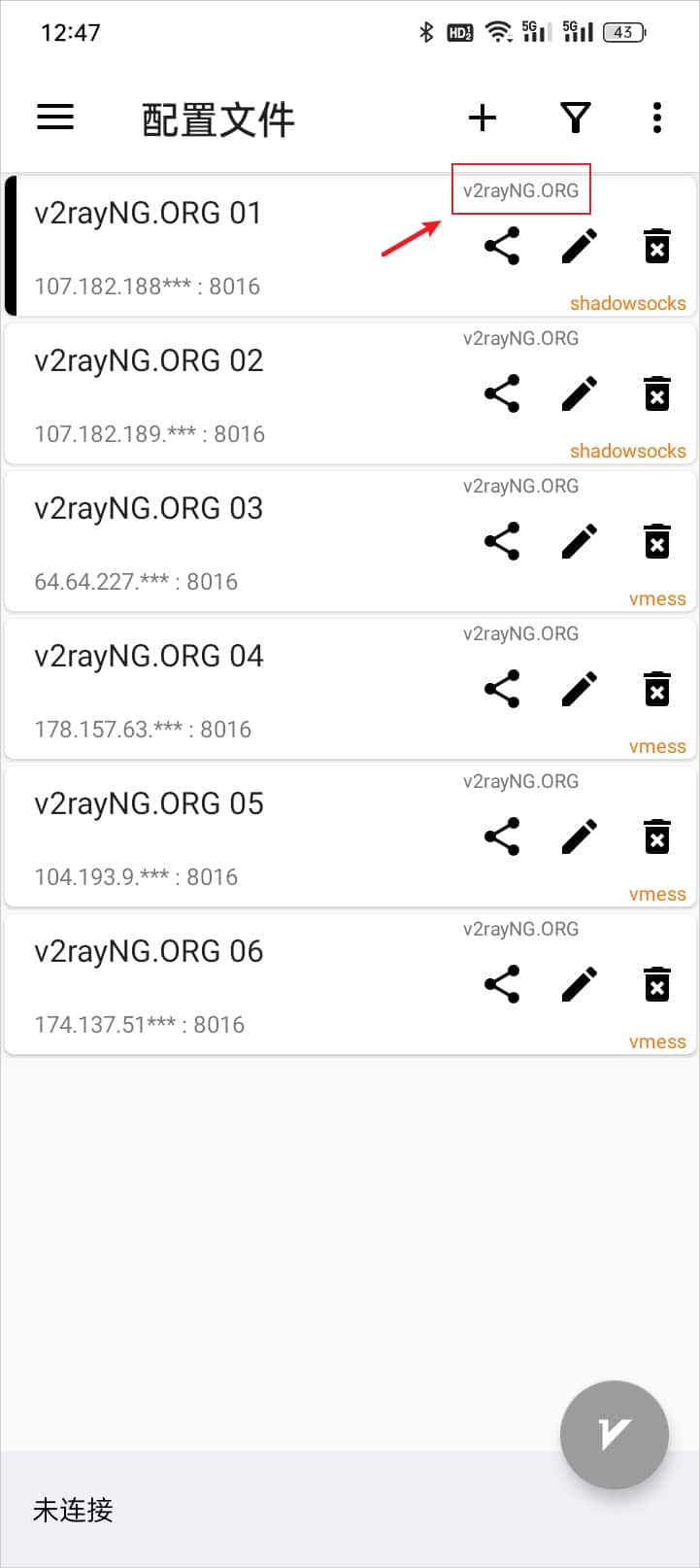
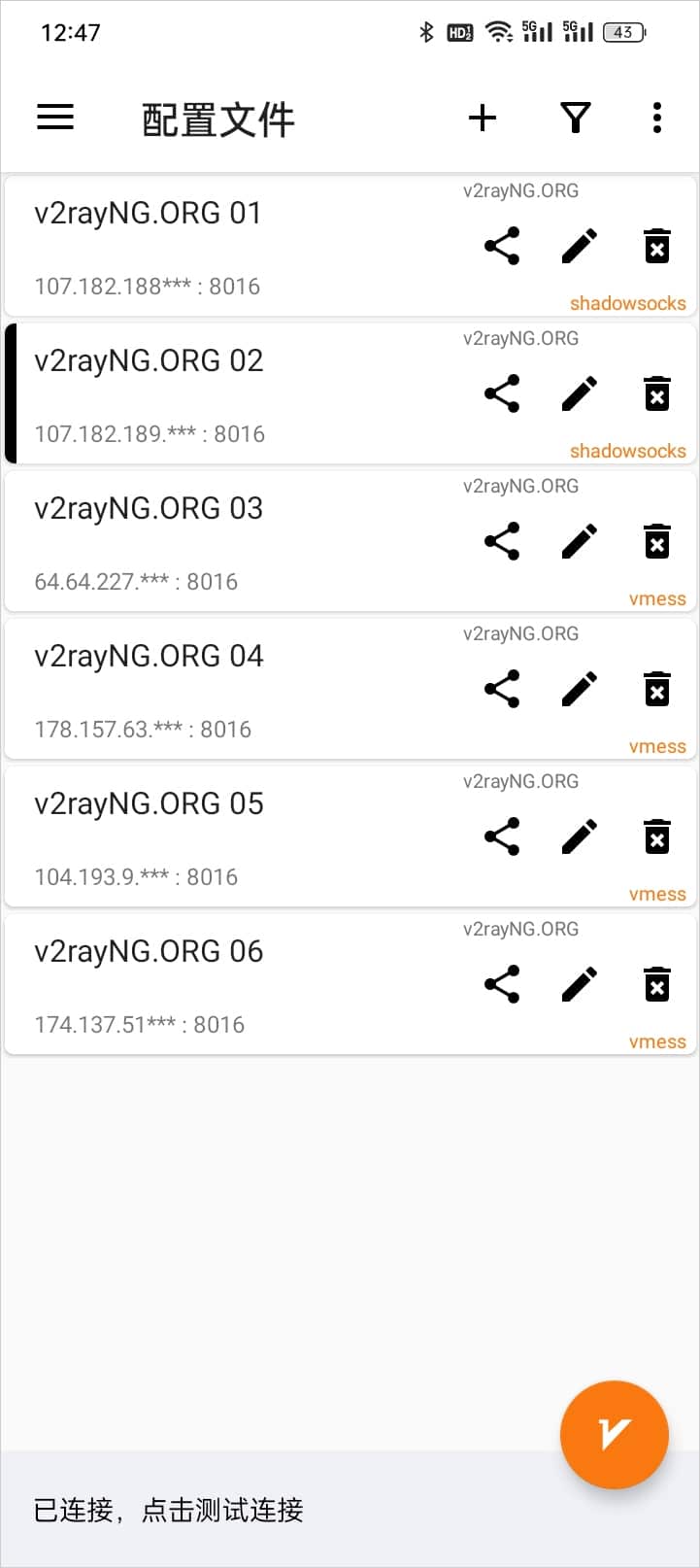
The downloaded servers appear in the list with their subscription group name at the top right of each entry. If the list is empty, check the URL, expiry and subscription format, then update again.
Step 06Select a node
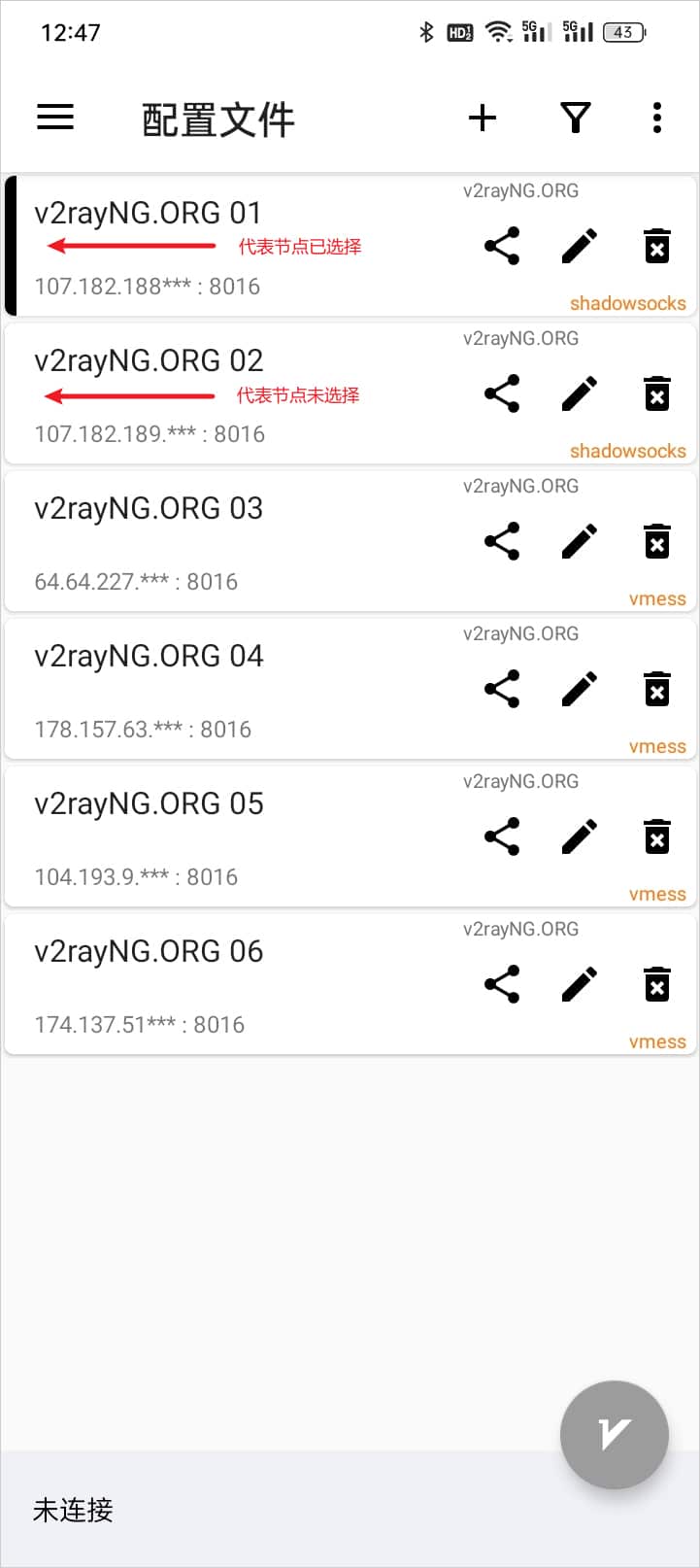
Tap the server you want to use to make it current. The selected example has a black bar along its left edge.
Step 07Start the connection
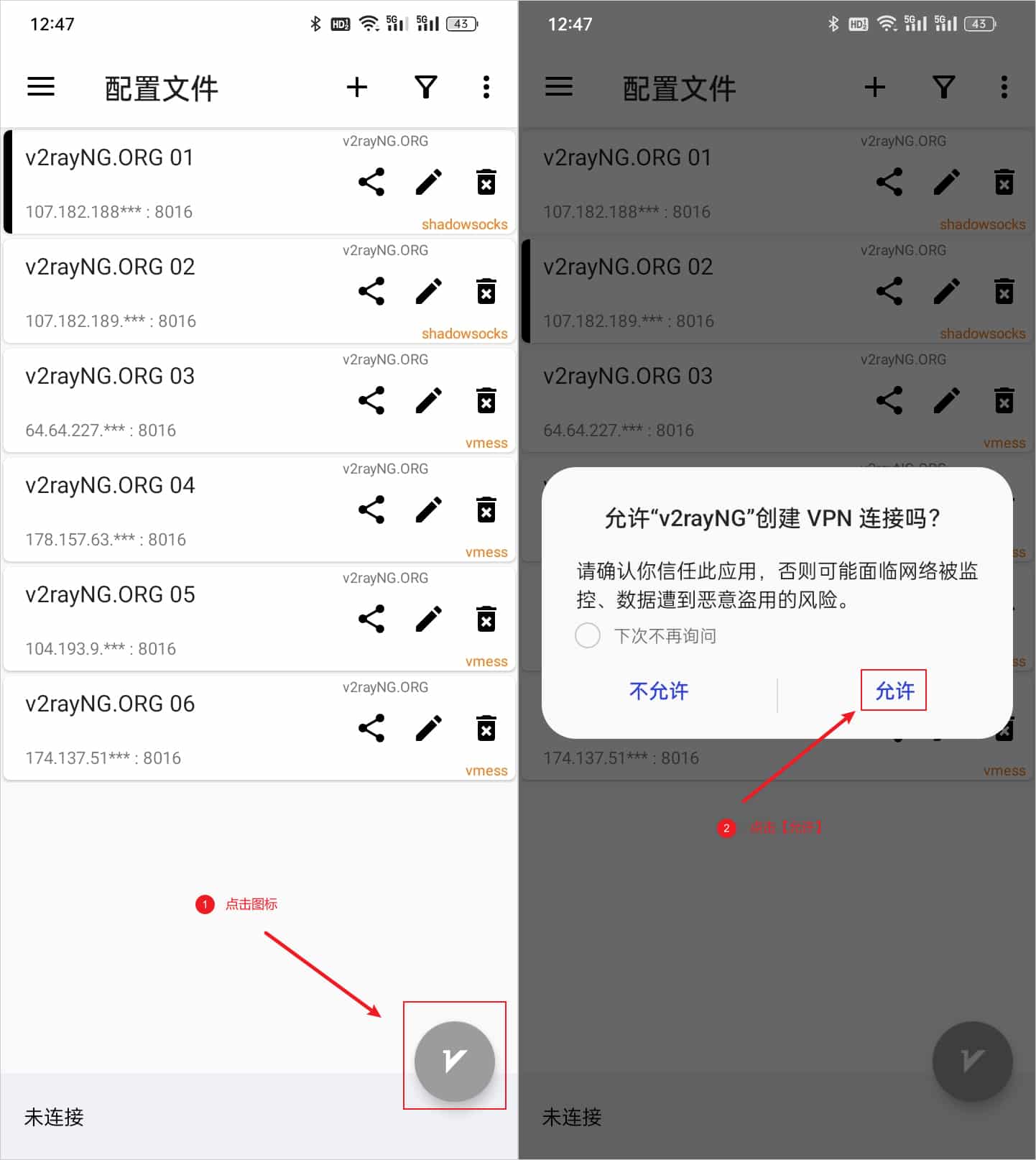
Tap the bottom-right V connection button. On the first connection, tap 允许 (Allow) in the Android VPN request.
When the button turns orange and the bottom status reads 已连接,点击测试连接 (Connected, tap to test), you can tap that status to check the current connection. Then use a browser to open a site you normally reach directly and a site that needs the proxy. Tap the bottom-right V button again to disconnect.
Step 08Proxy modes explained
Top-left menu → 设置 (Settings) → scroll down and expand 模式设置 (Mode settings) → 模式 (Mode). Choose traffic capture first, then use routing rules to split requests.
VPN: Use this for everyday phone use. Approve Android VPN access and check excluded apps and LAN bypass; it captures only apps within the VPN scope.
仅代理 (Proxy only): Opens a local proxy port. Set the proxy manually in the apps that need it.
Optional custom routing: Return to the top-left menu → 路由设置 (Routing settings). Rules match from top to bottom; the first match wins. proxy, direct and block respectively route matching requests through a proxy, connect them directly or block them. Keep your working configuration.
Optional preset: 导入预定义规则集 (Import predefined rulesets): Imports routing presets. Back up before replacing them. Rules do not capture excluded apps, and one direct rule does not make all traffic direct.