

Step 01Choose an import method
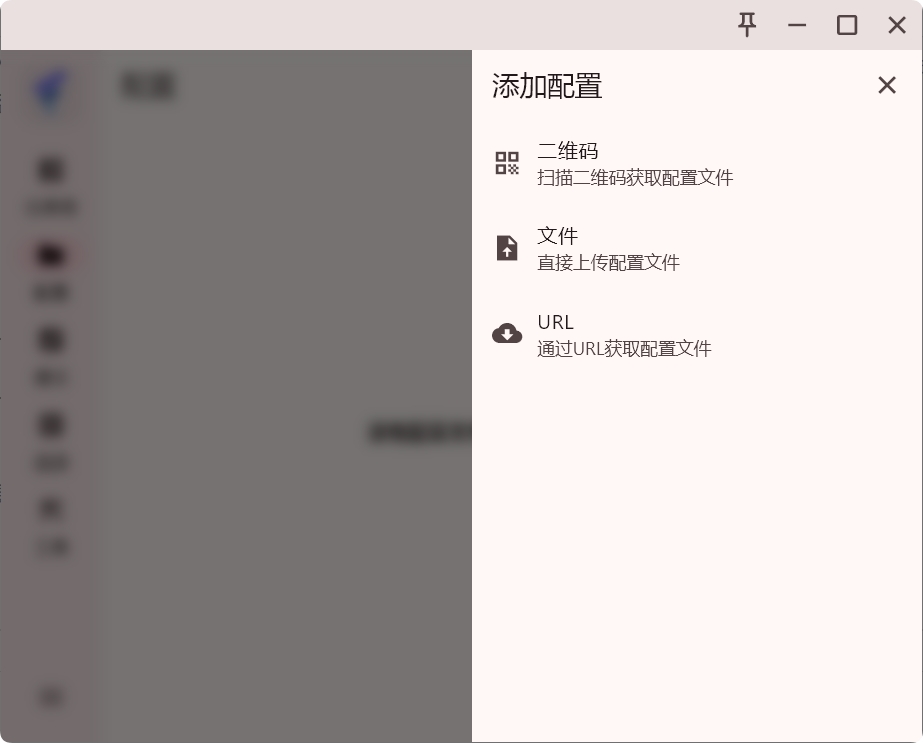
FlClash v0.9.1 offers four options under Add profile: QR code, File, Link, and Custom. If you already have a subscription URL, choose Link; that is the method used below.
Step 02Get a subscription
Copy a subscription URL supported by FlClash from your provider, then return to the Profiles page to import it. This guide uses 畅连 as an example.
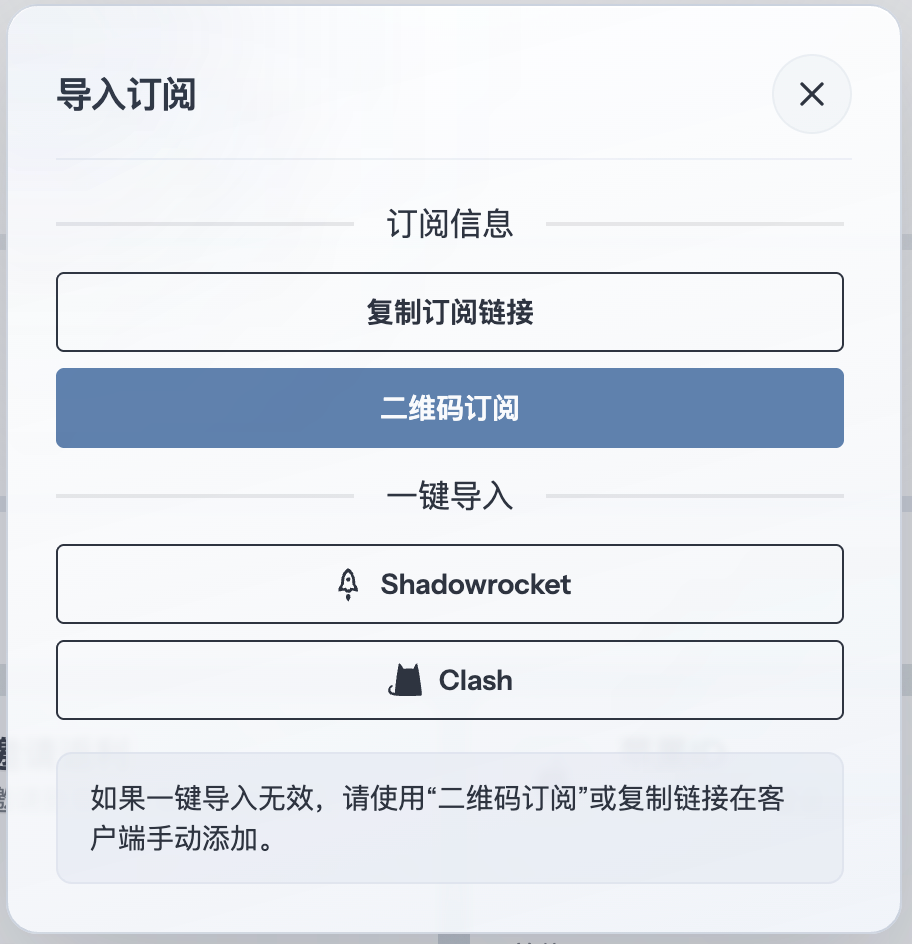
Step 03Add a profile
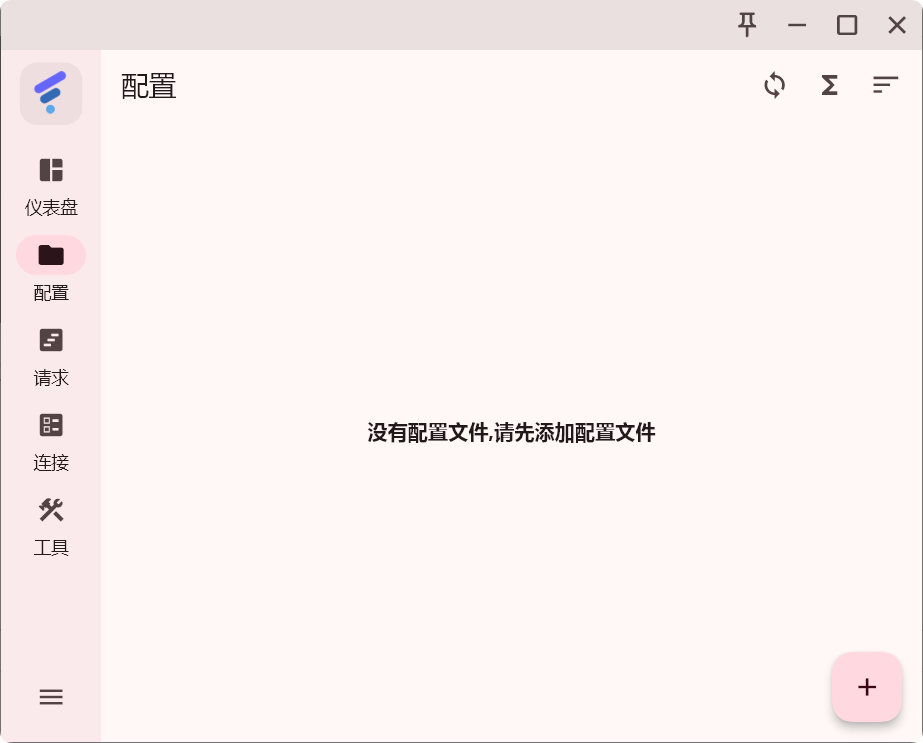
Open Profiles and choose Add profile. If the list is empty, use the button with the same name on that page.
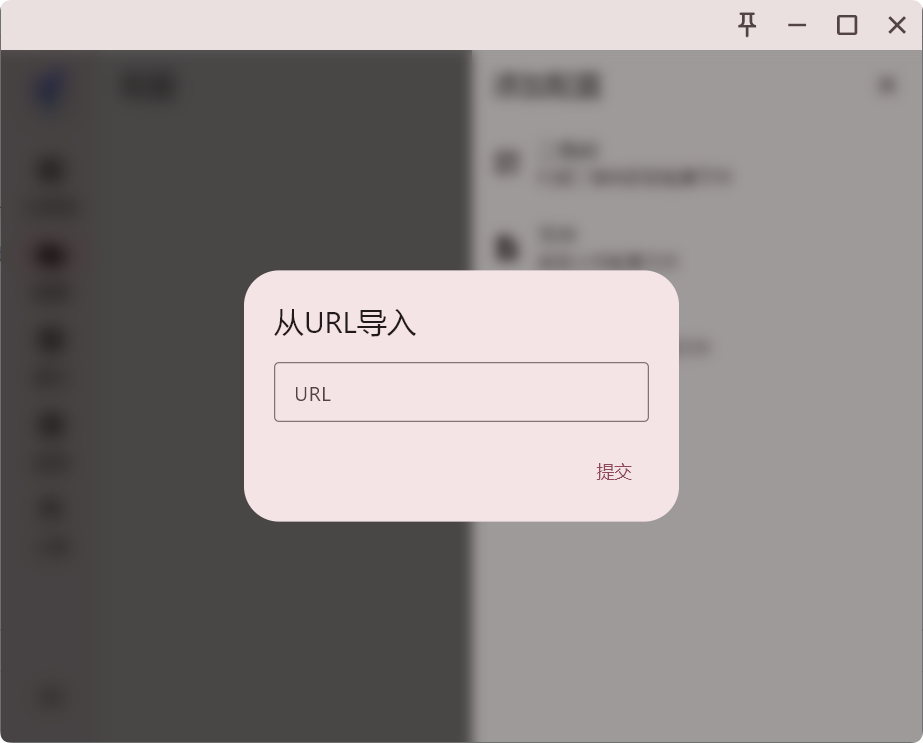
Choose Link, paste your subscription URL into the Import from link form, and submit it.
If Windows shows a firewall prompt, verify that it is for the FlClash application you installed, then allow access for the network types you use.
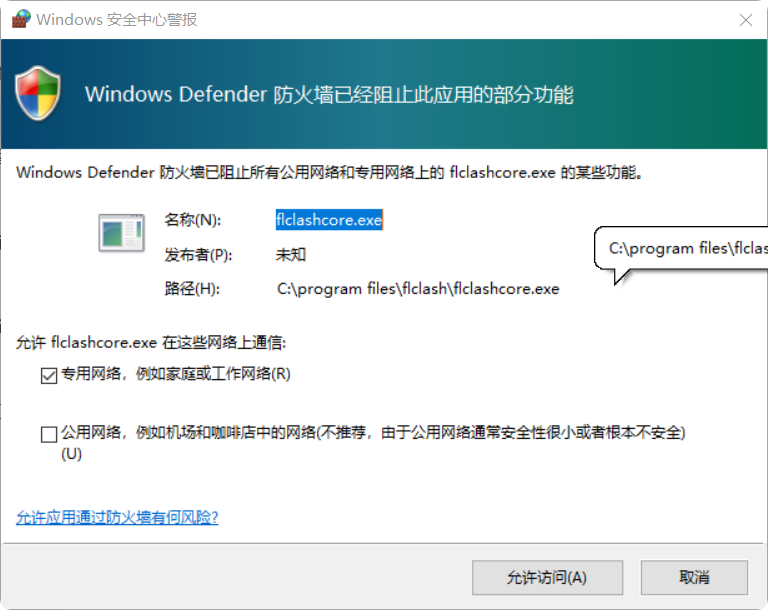
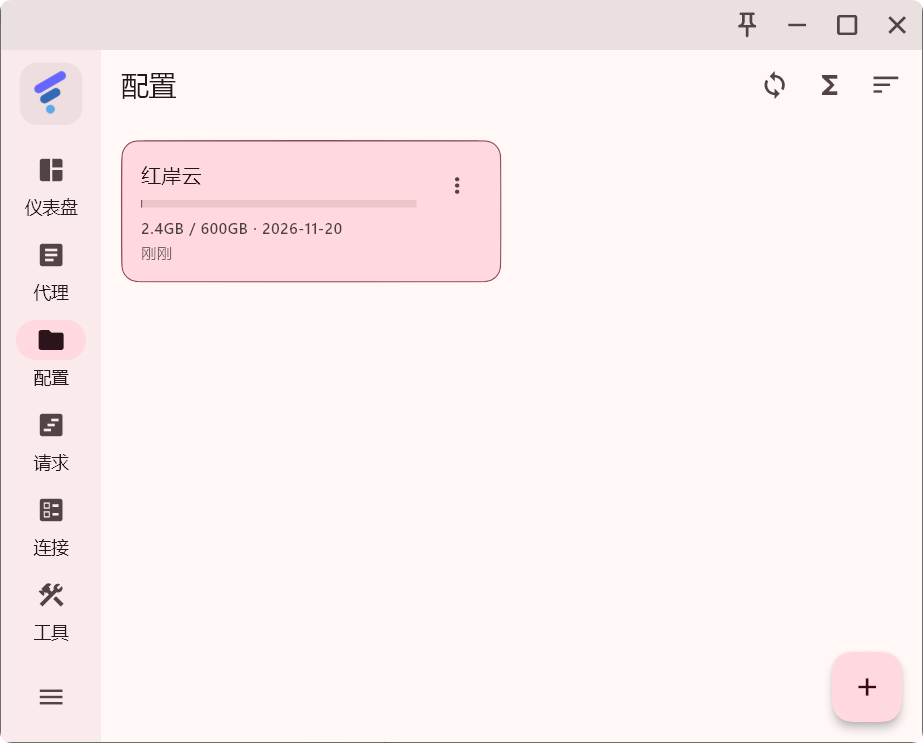
Once the import finishes, select the profile you want to use. Open Proxies and check that its groups and nodes have loaded.
Step 04Select a node
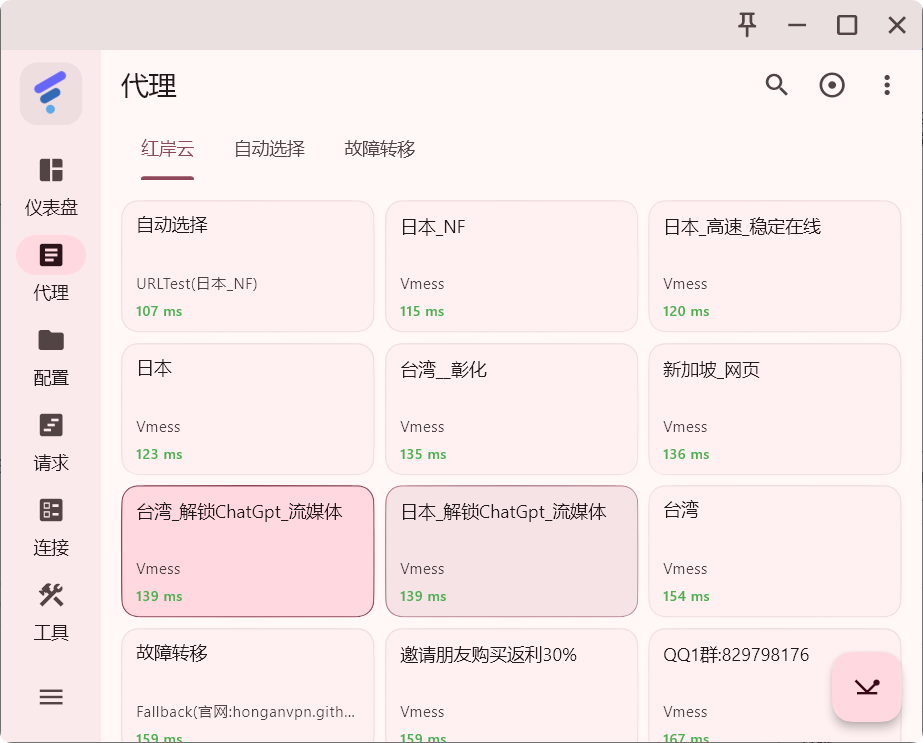
On the Proxies page, find a group from the active profile and choose an available node. The groups and nodes shown depend on the subscription configuration.
Step 05Start the proxy
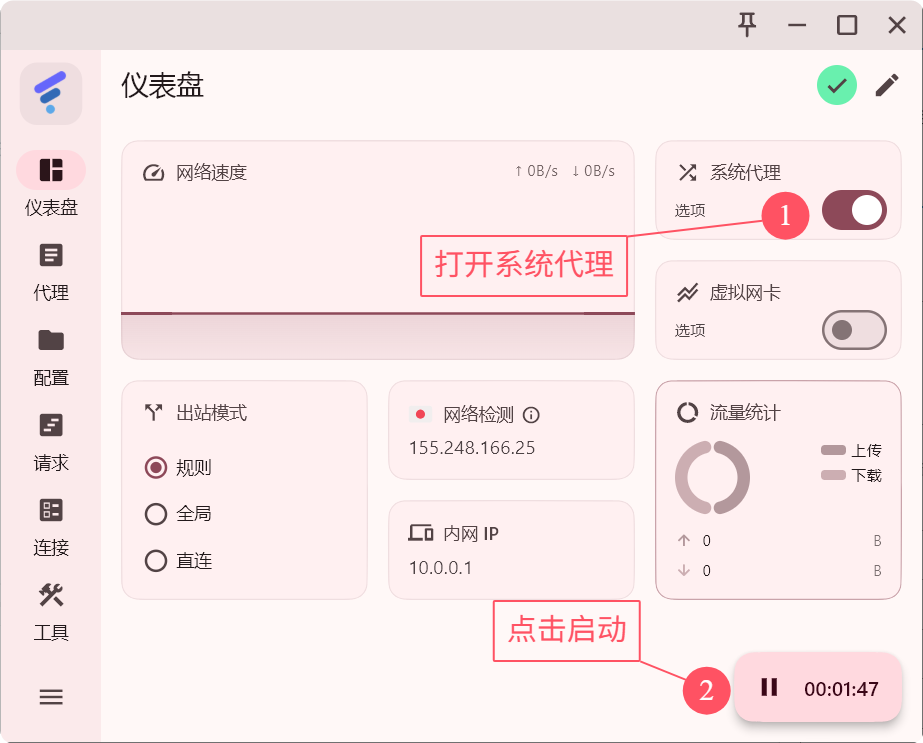
Return to Dashboard. On Windows, macOS, or Linux, enable System proxy. On Android, turn on the switch in the VPN card and approve the system VPN request when first prompted.
The desktop system proxy only covers apps that use that setting; Android coverage depends on the VPN and app settings. FlClash still applies the active mode and rules to choose a direct connection, a proxy, or rejection. Open your target website in a browser to check that the connection works.
Step 06Understand outbound modes
These modes control requests that reach the client. Switching modes does not make apps outside its coverage use the proxy.
FlClash provides three outbound modes for different network situations:
- Rule: uses profile rules to decide which traffic is proxied and which connects directly. Prefer this for everyday use.
- Global: requests handled by the client use the strategy selected in the global group instead of matching individual rules. Selecting DIRECT still makes them connect directly.
- Direct: sends requests handled by FlClash directly to their destination without a proxy. Selecting Direct does not turn off the Android VPN switch.