

Step 01Download and install
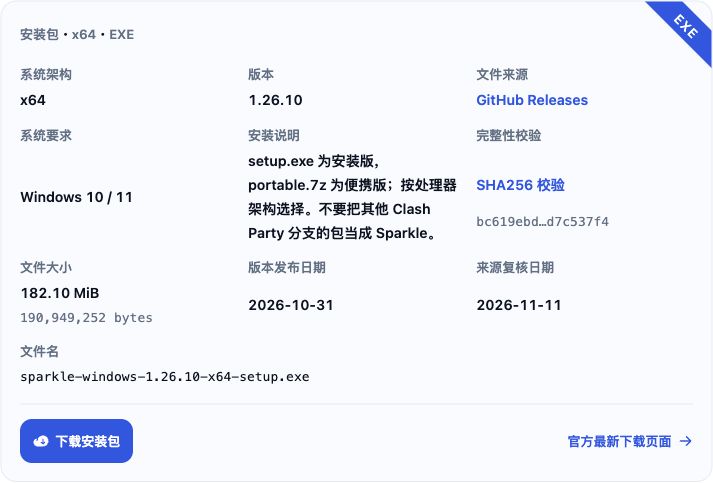
Windows: Open this site’s download page and prefer its Windows package matching your architecture. Use its official link for other x64 or ARM64 installers and portable builds. Install or fully extract the package, launch Sparkle and close other proxy apps.
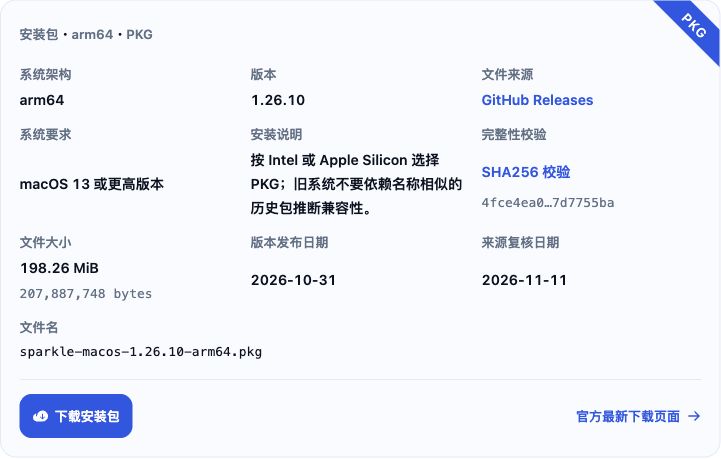
macOS: Open this site’s download page and choose the PKG for Intel or Apple Silicon. Open the PKG, follow the installer, then launch Sparkle from Applications.
Step 02Get a subscription
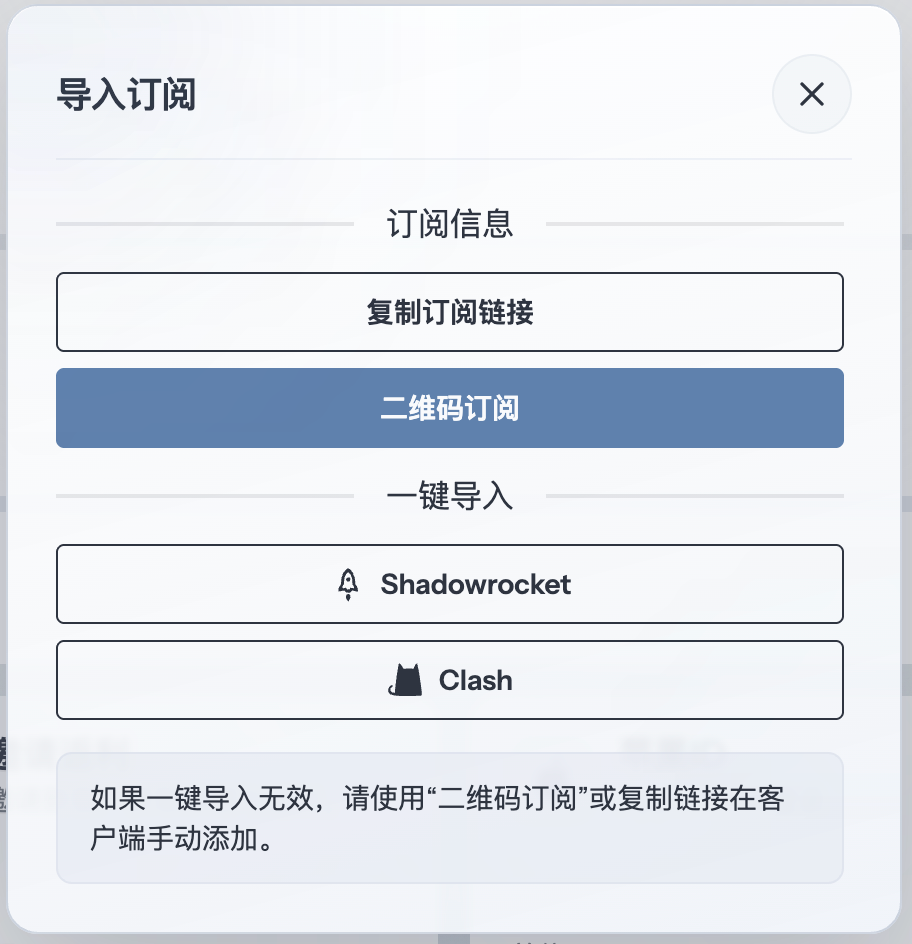
Copy the URL for a Mihomo/Clash-compatible subscription from your provider's dashboard. Using 畅连 as an example, open the subscription import window and click “复制订阅链接” (Copy subscription link).
Step 03Add a subscription
Click the current subscription card on the left (initially 空白订阅, Blank Subscription) to open 订阅管理 (Subscription Management), paste a Mihomo/Clash-compatible subscription URL → 导入 (Import). Select the downloaded profile. For a local YAML configuration file: + → 打开本地配置 (Open Local Profile).
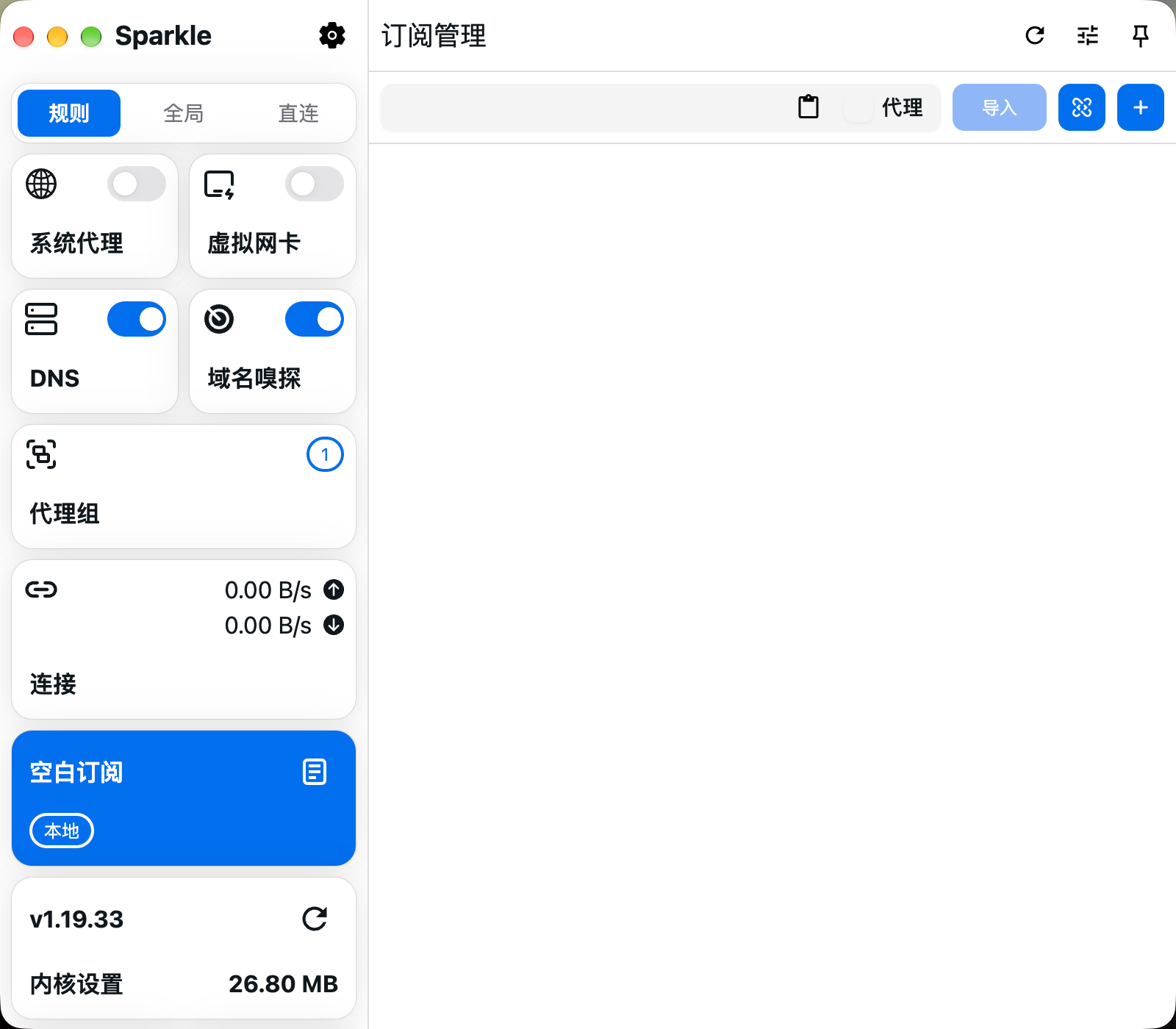
If importing fails, read the error. Check that the URL returns a complete configuration, not a provider web page, then import again.
Step 04Select a node
Click 代理组 (Proxy Groups), expand its node list and select a working node, or keep the profile’s automatic policy. Start in 规则 (Rule) mode. Test the node, then follow the next step to check actual browsing.

Step 05Enable system proxy
Enable 系统代理 (System Proxy). In a browser that follows the OS proxy, first open a site you can normally access directly, then one that needs the proxy.
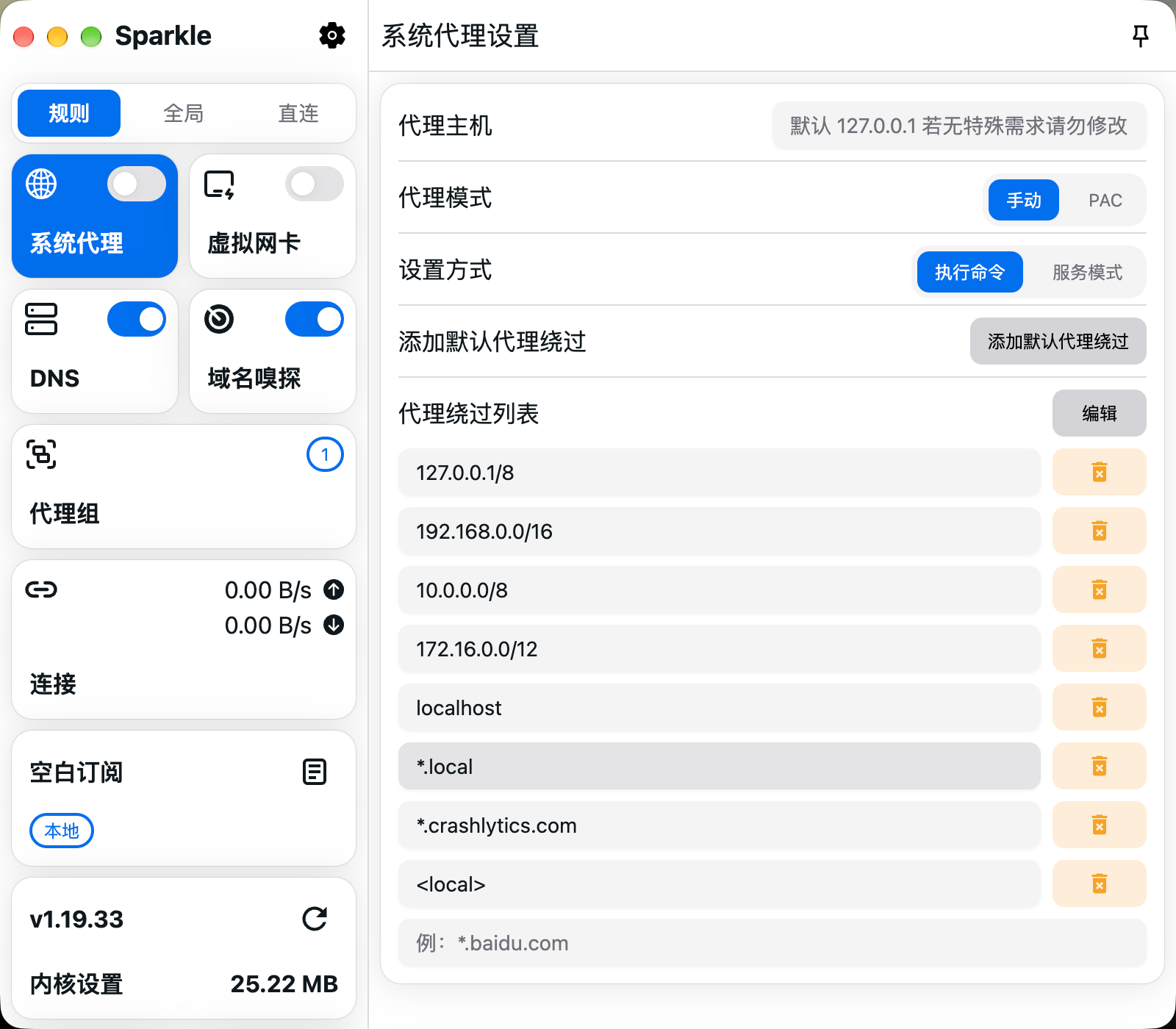
Check the outbound in 连接 (Connections) and 日志 (Logs).
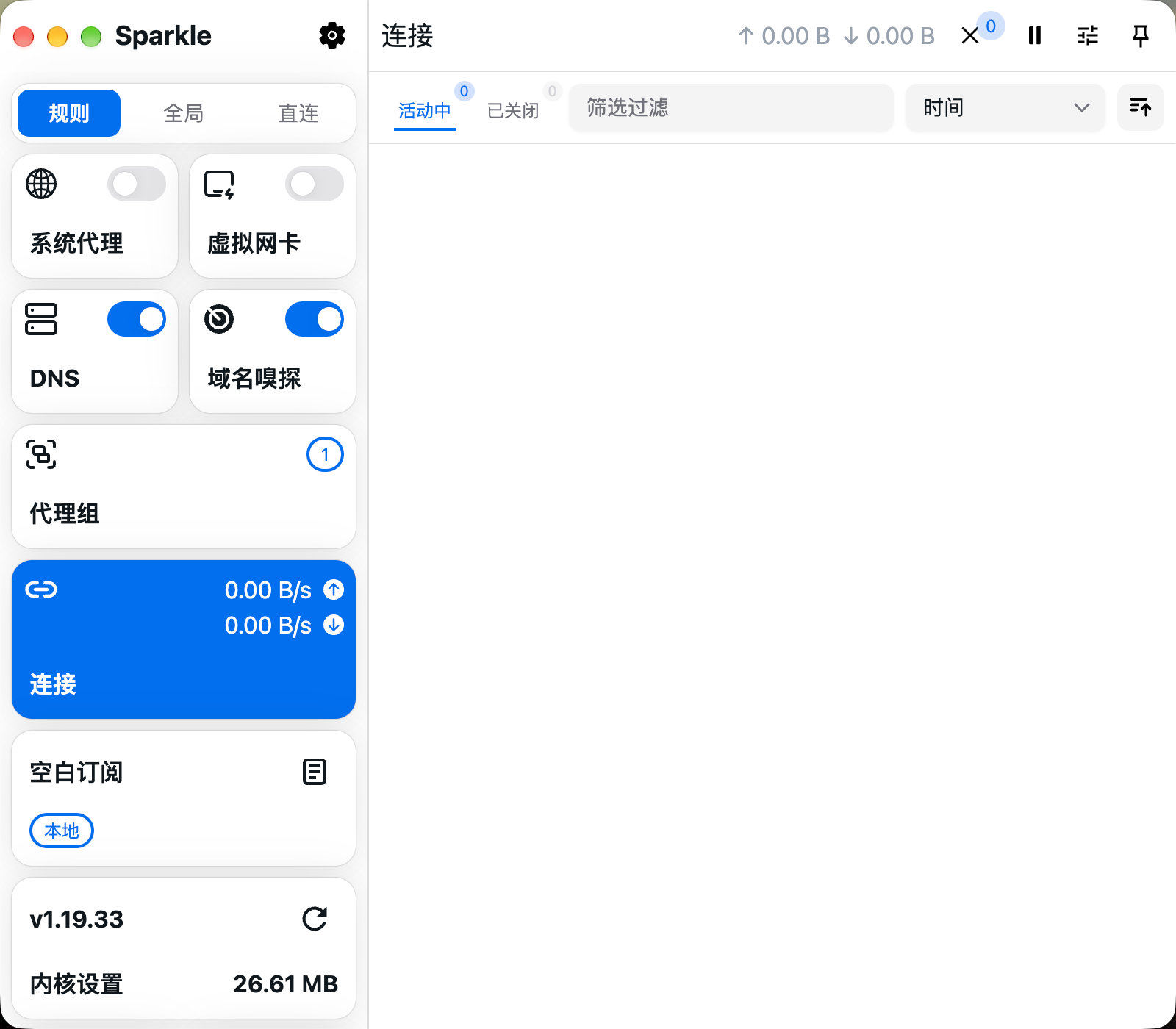
If normal access fails, turn off system proxy and TUN if enabled, then reopen a normally accessible site to check recovery.
Step 06Proxy modes explained
In the sidebar, choose 规则 (Rule), 全局 (Global) or 直连 (Direct). When collapsed, it shows R, G or D.
Rule follows the profile rules to a proxy group, direct access or rejection. Use it for everyday routing.
Global skips routing rules and uses the current proxy or policy in GLOBAL. Selecting DIRECT still goes direct. For troubleshooting, choose a working node to test, then return to Rule.
Direct reaches the destination without a proxy node. It does not quit Sparkle or stop the core.
系统代理 (System Proxy) and 虚拟网卡 (TUN) send app traffic to Sparkle. Modes only choose the outbound for received requests; they do not capture apps that bypass the client.